Prayk is now on Telegram: @PraykBot brings search, listing cards, favourites and messages into one place
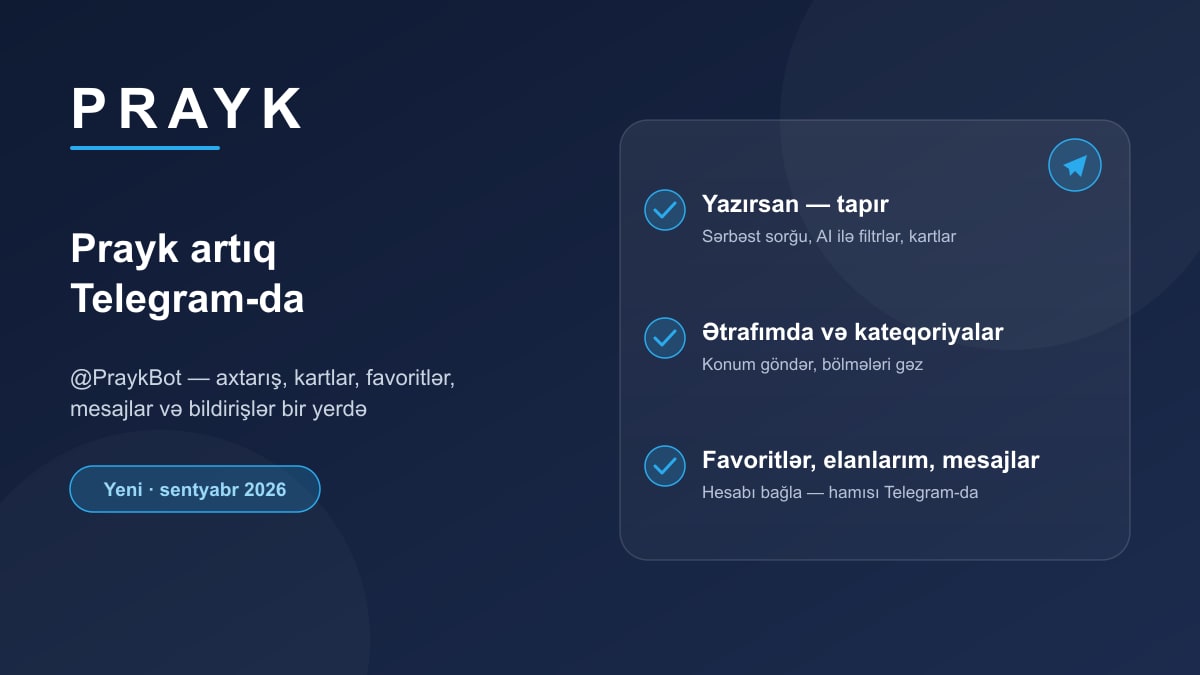
Telegram is one of the most-opened apps in Azerbaijan, so we brought Prayk there: @PraykBot — the site’s features in Telegram form. No sign-up, free, and you don’t even need an account to search. Below we answer the same two questions for every feature: where and how it works.
Getting started
Open t.me/PraykBot in Telegram and press Start. The bot says hello and an eight-button menu appears at the bottom: 🔍 Search, 📂 Categories, 📍 Near me, ❤️ Favourites, 📋 My listings, 💬 Messages, ➕ Post a listing, 👤 Account (button labels are in Azerbaijani for now). The same things are available as commands: /search, /categories, /near, /fav, /my, /chat, /post, /account, /alerts, /ai, /lang; /menu brings the menu back and /stop turns notifications off.
1. Search — just type
Where: send the bot any text — you don’t even have to press a button.
How it works: the same AI that powers Prayk Box on the site reads your text and turns it into filters: category, price range, city, district, metro station, attributes such as make and model. “2-room in Narimanov up to 150k” means sale rather than rent, Narimanov district and a price ceiling; “iPhone 15 Pro 256 GB” means the smartphone section, model and storage. The bot confirms in one sentence what it understood and shows the results in a single photo card: ◀️ ▶️ move you from listing to listing and the card updates in place, so your chat is not flooded with dozens of messages. The header shows “7/243” — your position and the total; at the end of the list the next page loads by itself. If the AI is briefly unavailable, the bot falls back to a plain title search — you never get no answer.
2. The listing card and its buttons
Every card shows a photo, title, price (with the old price struck through when there is a discount), location, section and date. The buttons under the card are the main actions of the listing page on the site:
- ❤️ — adds to or removes from favourites (requires a connected account).
- 📞 Number — sends the seller’s phone number. The same rules as “Show number” on the site apply: every reveal is logged, the seller gets a “your number was viewed” notification and one user can open a limited number of phones per day — protection against number-harvesting bots (details: phone protection).
- 💬 Write — opens a Prayk chat with the seller; your next message goes straight to them. The seller sees the reply on the site, in the app or right in Telegram.
- 🔍 Details — the seller, publication date, view count and a snippet of the description expand inside the same card; the button turns into “Short” and collapses it again.
- 🌐 Open on site — the listing page on Prayk, in your language.
The bottom row changes with the context: “🔔 Subscribe” in search (see below), “◀️ Sections” in a category, “📏 Radius” in Near me.
3. Categories
Where: the “📂 Categories” menu button.
How it works: root sections arrive as buttons; tapping one reveals its subsections plus “📋 All listings in this section” and “◀️ Back”. A section without subsections shows its newest listings straight away — the same photo cards with paging.
4. Near me
Where: the “📍 Near me” button, or simply send the bot your location (📎 → Location).
How it works: the bot returns listings with coordinates within 2 km of you, nearest first. Change the radius with one tap: 500 m, 1 km, 2 km or 5 km; “🌐 View on map” opens the same point on the Listings nearby page. It is the pocket version of the site’s “Nearby” and map features.
5. By link and by number
Send the bot a link from another classifieds site and it finds the same listing on Prayk and replies with a card (the same mechanism as “Check by link” on the site). A Prayk listing link, or just its number written as “#1797152”, opens that exact listing.
6. Connecting your account
Where: the “👤 Account” menu button.
How it works: there are two ways. First, the “📱 Share my number” button in the bot: Telegram itself verifies and passes your number, the bot matches it to your Prayk account and connects it — no codes to type. Second, on the site: in the cabinet’s Notifications section press “Connect Telegram” (Telegram opens, you press Start). Connecting brings favourites, your listings, messages and notifications into Telegram. To disconnect, use “🔓 Disconnect account” or /stop.
7. Favourites, my listings, messages
❤️ Favourites — the same list as on the site and in the app; in the bot it arrives as cards, and you can add or remove from here too.
📋 My listings — all your listings with status (active, in moderation, paused, expired) and view counts. One tap pauses an active listing or reactivates a paused or expired one — the same actions as in the cabinet.
💬 Messages — the list of your chats (who, which listing, how many unread); opening one shows the latest messages and a “✍️ Reply” button. The key part: when someone writes to you on the site, the message also arrives in Telegram — you press “Reply” right there and your answer lands in the chat on the site. If you are active on the site at that moment, no duplicate is sent to Telegram.
8. Notifications
With a connected account the site’s notifications arrive in Telegram as messages: a new listing matching a saved search, a hit in your Location Radar, a price drop on a favourite, offers on your “Looking for” request, the moderation result of your listing and more. Every message carries an “Open on Prayk” button. You choose which groups to receive in the preferences table in the cabinet; at most 40 messages go out per day.
9. A “Looking for” request
When a search comes back empty, the bot offers a “🙋 Post a ‘Looking for’ request” button. Type one line — for example “Buying iPhone 15 Pro 256 GB” — and your request lands in the Looking for section; the category, city and price ceiling from your last search are picked up automatically. When owners of matching listings or stores send offers, you get a notification.
10. Prayk Mini App — the site inside Telegram
In the chat with the bot, next to the input field, there is a “Prayk” button that opens the site itself inside Telegram: posting a listing, the cabinet, the map, everything. Whenever you need something the bot buttons don’t cover, it is always at hand. The “➕ Post a listing” button also leads straight to the listing form — upload the photos and the AI prepares the title, category and description.
11. Notify me about new listings
Where: the “🔔 Subscribe” button under search results; the list of alerts is in “👤 Account → 🔔 My alerts” or the /alerts command.
How it works: the filters you searched with (category, price, city, district, metro) are saved, and when a matching listing appears the bot messages you. Pressing it twice with the same filters does not create a duplicate. The list shows each alert’s name, how many listings it has brought and a delete button; the same alerts appear in the cabinet on the site.
12. AI mode: /ai
Where: the /ai your question command; the “🤖 Ask the AI” button when a search finds nothing; price and platform questions land here automatically.
How it works: ordinary search is fast and precise, but a question like “which district has cheaper two-room flats” cannot be expressed as filters. In that case the bot uses the same brain as PRAYK AI on the site: the model calls Prayk’s own tools (listing search, price statistics, categories and stores), assembles the answer and includes links to the listings it mentions. The conversation is remembered, so you can ask follow-ups; “🧹 Clear the chat” resets it.
13. In any chat: @PraykBot
Where: in any Telegram chat, type @PraykBot iphone 15 in the message field — no need to switch to the bot.
How it works: a list of listings appears as you type (photo, title, price, location); tap one and it is sent into that chat as a ready-made card with a link and a “🌐 View listing” button. It is the fastest way to show a listing to a friend or a group: only you see the list, and only the listing you pick is sent.
14. Language
The bot speaks Azerbaijani, Russian and English. The /lang command (or the language buttons in “👤 Account”) switches every text, button and site link. If you choose nothing, your Telegram account language is used.
Privacy and limits
The bot sees your phone number only when you press “Share my number” yourself; plain search needs no data at all. Sellers’ numbers are revealed only via the button, logged and capped per day. Requests per minute from one user are limited, which protects the bot from automated scraping. /stop removes the connection and stops notifications.
Using it all together
A typical day: in the morning you type “Toyota Prius 2018 Baku”, keep two cards with ❤️ and ask one seller a question via “💬 Write”; when they reply from the site, the message reaches Telegram and you answer right there. In the evening you check what appeared nearby with “📍 Near me”. Questions and suggestions are welcome via the contacts on the About page. The bot: t.me/PraykBot.